Loading…
Loading video…

15,885 views
Did you know that pharmaceutical companies like Pfizer use t-tests daily to determine if new medications outperform placebos? Performing student's t-test in Microsoft Excel empowers researchers to make these critical statistical decisions with just a few clicks. From comparing SAT scores between different teaching methods to analyzing clinical trial results at Johns Hopkins, Excel's T.TEST function streamlines complex statistical analysis for students and professionals alike. Watch the full video on JoVE Coach to master this concept with expert-led visuals and step-by-step explanations.
Performing student's t-test in Microsoft Excel transforms complex statistical analysis into an accessible process for high school and college students. The Student's t-test, developed by William Sealy Gosset (publishing under the pseudonym "Student"), addresses a fundamental question: are the differences we observe between groups statistically meaningful or simply due to random chance?
Excel's implementation makes this powerful statistical tool available without specialized software. The T.TEST function serves as your primary tool, accepting data ranges and returning probability values that determine statistical significance. This approach proves invaluable for AP Statistics students analyzing survey data or pre-med students evaluating research findings for MCAT preparation.
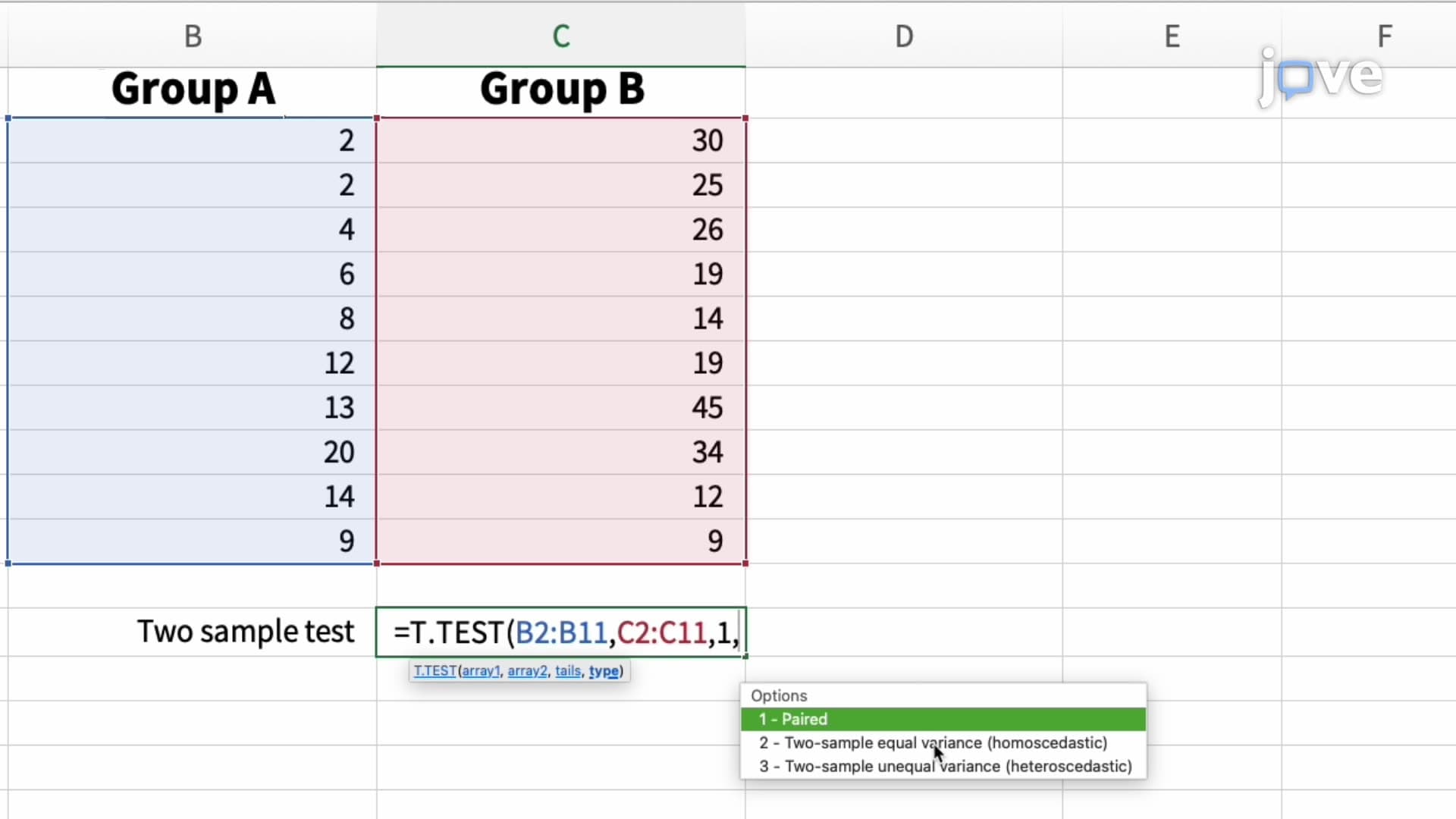
Excel accommodates three distinct t-test scenarios through the Type parameter in the T.TEST function. Type 1 performs paired t-tests, ideal when comparing before-and-after measurements on the same subjects—like blood pressure readings before and after medication in a clinical trial at Mayo Clinic. This requires identical sample sizes since each observation in group one corresponds directly to a specific observation in group two.
Type 2 handles two-sample t-tests assuming equal variances (homoscedastic data). Use this when comparing standardized test scores between different schools, assuming similar score distributions. Type 3 addresses unequal variances (heteroscedastic data), common when sample sizes differ significantly or when comparing fundamentally different populations, such as comparing reaction times between professional athletes and average college students.
The Array1 and Array2 parameters define your data ranges, while the Tails parameter specifies whether you're conducting a one-tailed or two-tailed test. One-tailed tests examine directional hypotheses—testing if a new teaching method improves scores rather than simply changes them. Two-tailed tests detect any significant difference, regardless of direction.
For college-level statistics courses, understanding these distinctions proves crucial for midterm success. The function returns a p-value that you compare against your significance level (typically 0.05) to determine statistical significance.
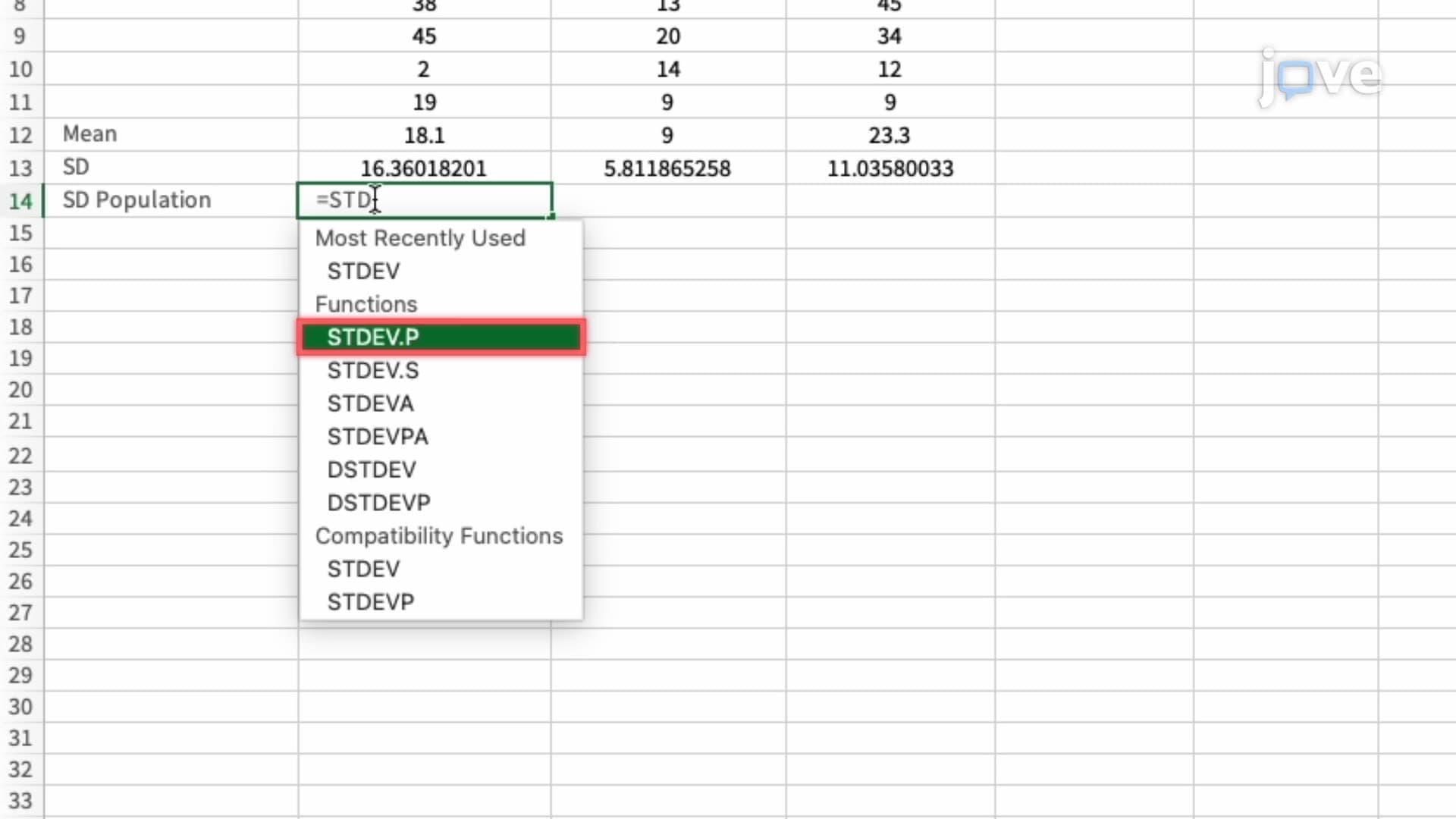
One-sample t-tests in Excel require manual setup but offer deeper understanding of underlying calculations. Calculate the sample mean, standard deviation, and count using Excel's AVERAGE, STDEV.S, and COUNT functions. The t-statistic formula becomes: t = (sample mean - population mean) / (sample standard deviation / square root of sample size).
Use T.DIST.2T for two-tailed tests or T.DIST for one-tailed tests, inputting your calculated t-statistic and degrees of freedom. This manual approach reinforces statistical concepts essential for advanced coursework and standardized exams.
Frequently Asked Questions
Performing student's t-test in Microsoft Excel involves using built-in functions to determine if differences between group means are statistically significant rather than due to random chance. Excel's T.TEST function streamlines this process, making advanced statistical analysis accessible without specialized software. This skill proves essential for research projects, data analysis courses, and understanding scientific literature across multiple disciplines.
Excel's t-test functions directly align with AP Statistics curriculum requirements for hypothesis testing and inference procedures. Students can verify hand calculations, explore different scenarios quickly, and focus on interpretation rather than computational mechanics. The visual approach helps solidify concepts tested in AP free-response questions. Practice with Excel builds confidence for both multiple-choice and written sections.
Absolutely—MCAT psychology and sociology sections frequently include research interpretation questions requiring statistical literacy. Understanding t-tests helps evaluate study validity and significance in research passages. Medical schools increasingly emphasize data analysis skills, making Excel proficiency valuable for coursework and research opportunities. This foundation supports success in biostatistics courses required for many pre-health programs.
Pharmaceutical companies rely on t-tests throughout clinical trials to compare treatment effectiveness against placebos or existing medications. For example, when testing a new diabetes medication, researchers use two-sample t-tests to compare blood glucose levels between treatment and control groups. These analyses determine whether observed improvements represent genuine therapeutic effects or random variation, directly influencing FDA approval decisions.
Excel's T.TEST function is specifically designed for accessibility, requiring only basic understanding of hypothesis testing concepts. High school students in introductory statistics can successfully use these tools with proper guidance. The key lies in understanding when to apply each test type rather than complex mathematical derivations. Start with simple two-group comparisons before advancing to more sophisticated analyses.
Focus on pattern recognition—practice identifying which t-test type suits different scenarios based on data characteristics and research questions. Create a decision flowchart covering sample relationships, variance assumptions, and hypothesis directions. Work through diverse examples using Excel to reinforce conceptual understanding. Form study groups to discuss interpretation challenges, as explaining concepts to peers strengthens comprehension and retention.
Understanding both approaches creates comprehensive statistical literacy—manual calculations build conceptual foundation while Excel provides practical efficiency. Start with hand calculations to grasp underlying mathematics, then transition to Excel for complex datasets and real-world applications. This dual approach prepares students for various academic contexts, from theoretical exams requiring formula knowledge to research projects demanding computational tools.
Progress to ANOVA for comparing multiple groups simultaneously, then explore regression analysis for examining relationships between continuous variables. Chi-square tests offer insights into categorical data relationships. Excel supports these analyses through additional functions and the Analysis ToolPak add-in. This progression builds toward multivariate statistics and machine learning concepts increasingly relevant in modern data science applications.
Related Micro-courses



Related Subjects
 Physics 33 micro-courses›
 Math Fundamentals 11 micro-courses›